SROMBot Get started
The complete guide

From download to your first hunt

Every screen of the app, explained with pictures. The gold numbers on each picture match the steps beside it.

The app's screens are in Arabic for now; an English interface is on the way. Follow the numbers and you won't get lost.

Before you start

  1. 1

    Subscribe on the site

    Create your account and pay with EasyKash; your account activates on its own once the payment goes through.

  2. 2

    Download the app

    The "Download the app" button appears on your account page as soon as your subscription is active.

  3. 3

    Install it

    Open the file. If Android asks, allow installs from that source only. Android 10 or newer.

  4. 4

    When updating

    Install the new version over the old one and your settings stay. Don't uninstall before updating.

Getting started

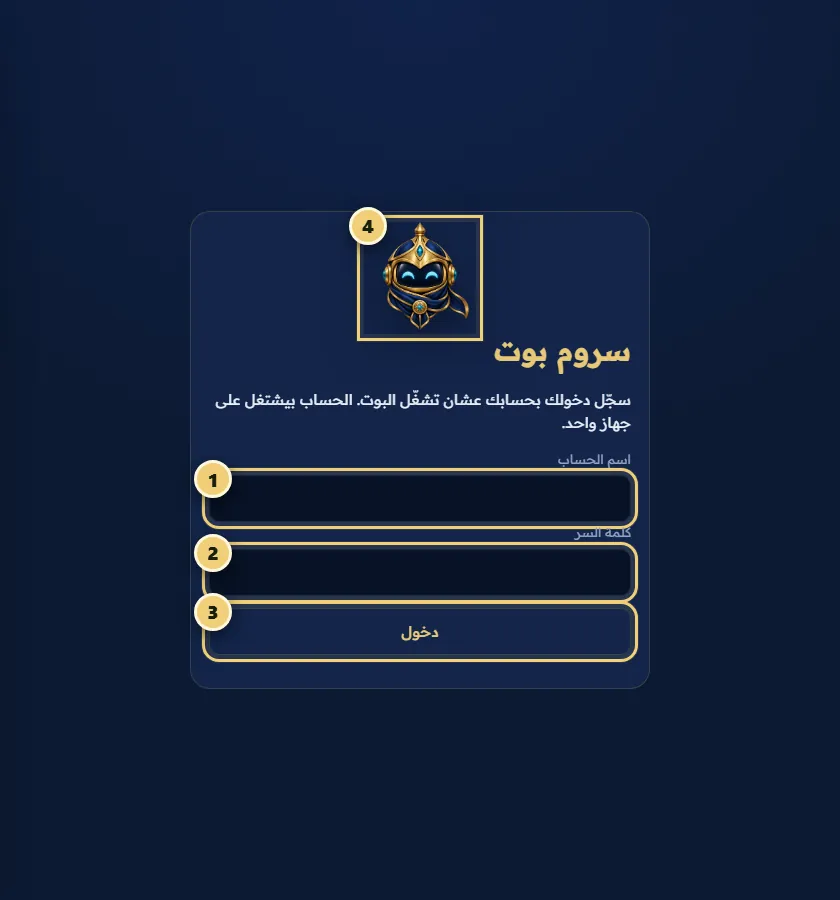
Sign in
Step 1

Sign in

  1. Enter your SROMBot username, the same account as the site. Your game account is never typed here.
  2. Enter your password, and never send it to anyone, us included.
  3. Tap sign in. The account runs on one phone.
  4. Check the logo before you type your details.
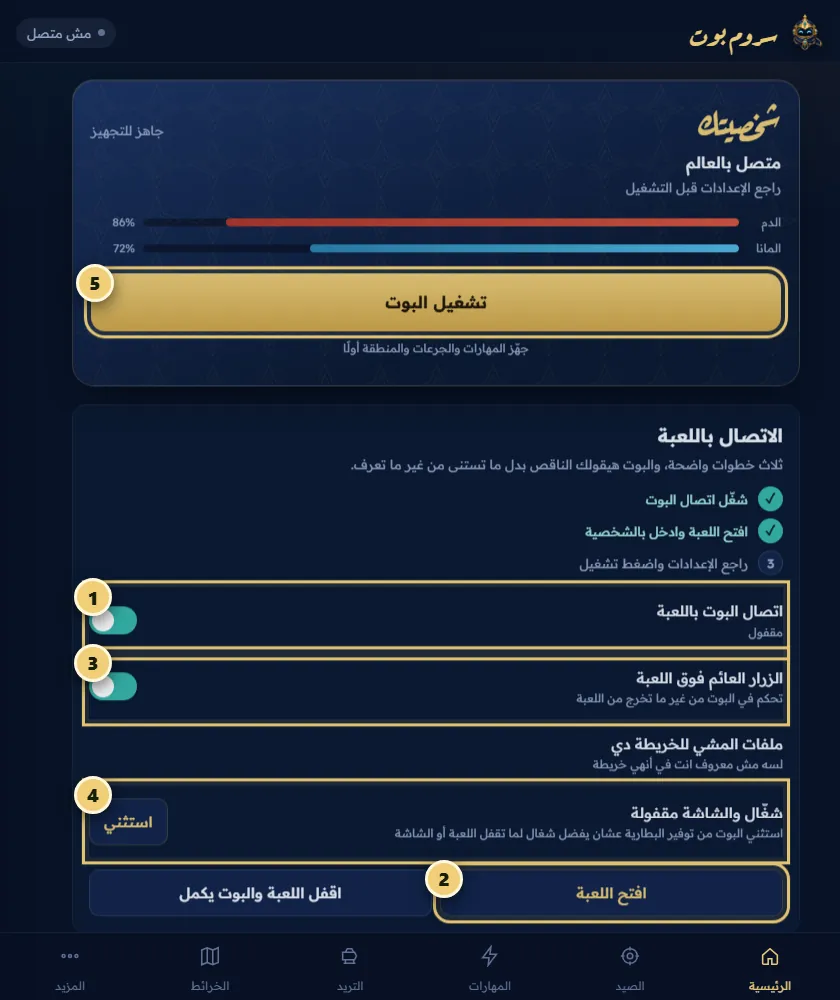
Connect the app to the game
Step 2

Connect the app to the game

  1. Turn on "Bot connection to the game" and accept Android's prompt.
  2. Tap "Open the game" and enter the world with your character.
  3. Turn on the floating button to control the bot on top of the game.
  4. Exclude SROMBot from battery saving so it keeps running with the screen off.
  5. Once your character shows up and your settings are ready, tap "Start the bot".
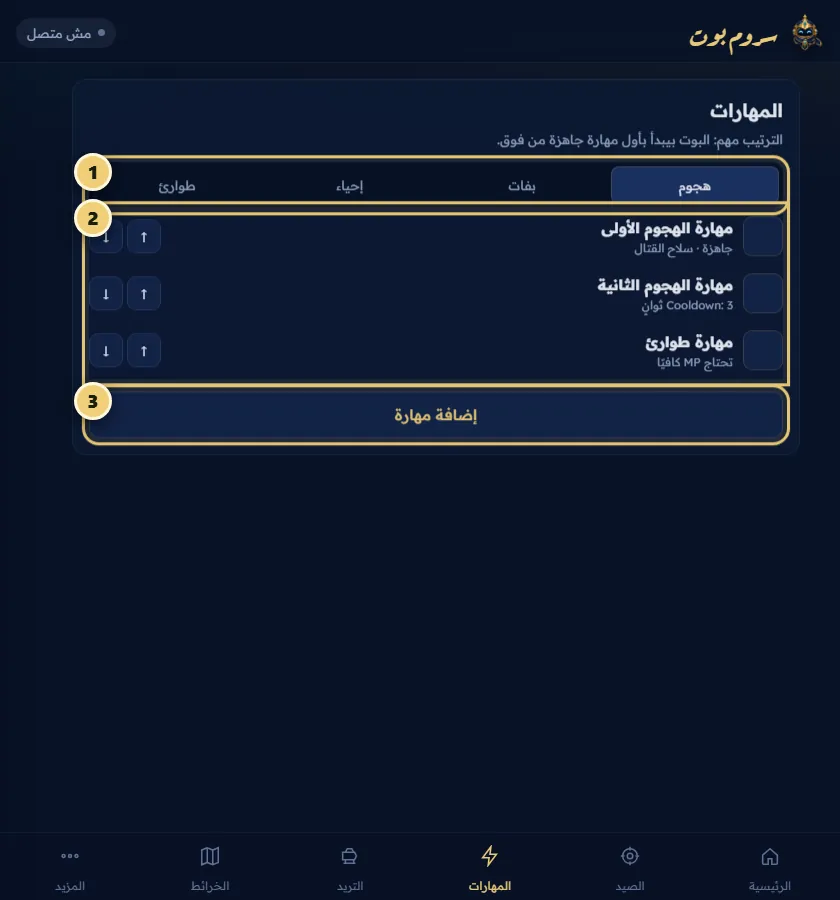
Order your skills and buffs
Step 3

Order your skills and buffs

  1. Pick the list: attack, buffs, revive or emergency.
  2. Order skills by priority. The bot uses the first ready skill from the top.
  3. Tap "Add skill" and pick it from your character's skills.

Hunting and protection

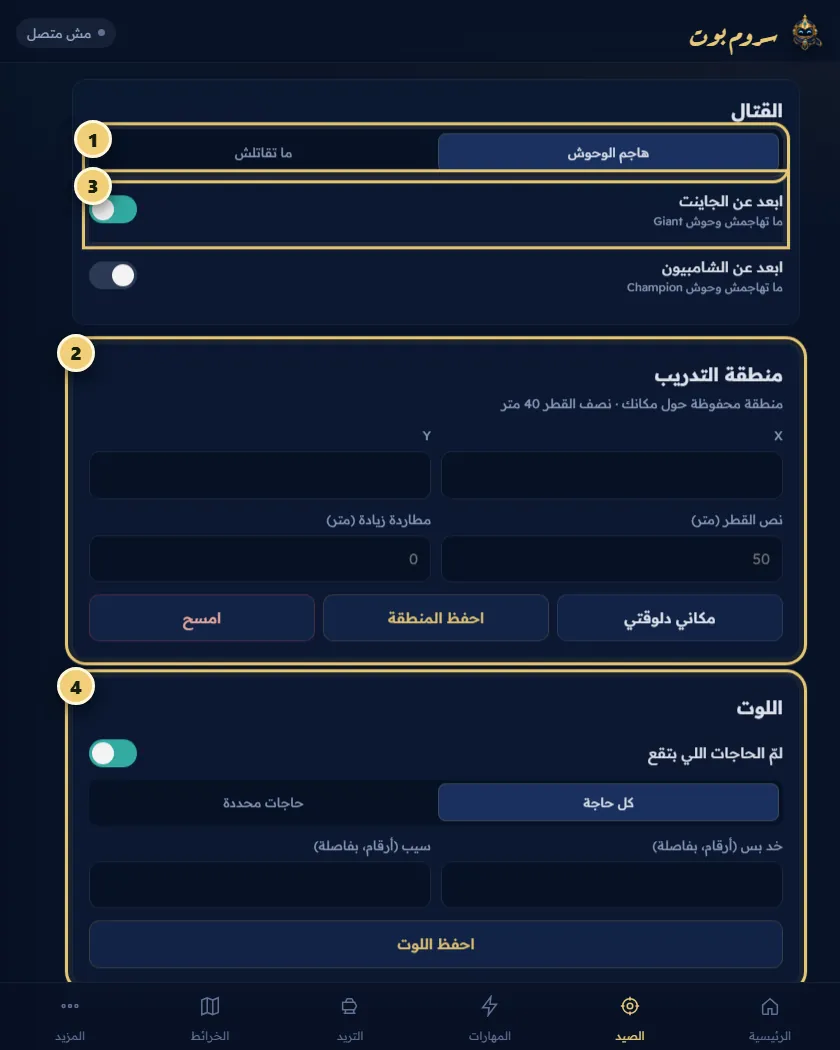
Set up hunting
Step 4

Set up hunting

  1. Choose "Attack monsters" or "Don't fight".
  2. Save your training area's centre and radius.
  3. Turn on "Avoid Giants" if your character isn't ready for them yet.
  4. Pick up everything or only chosen items, then save.
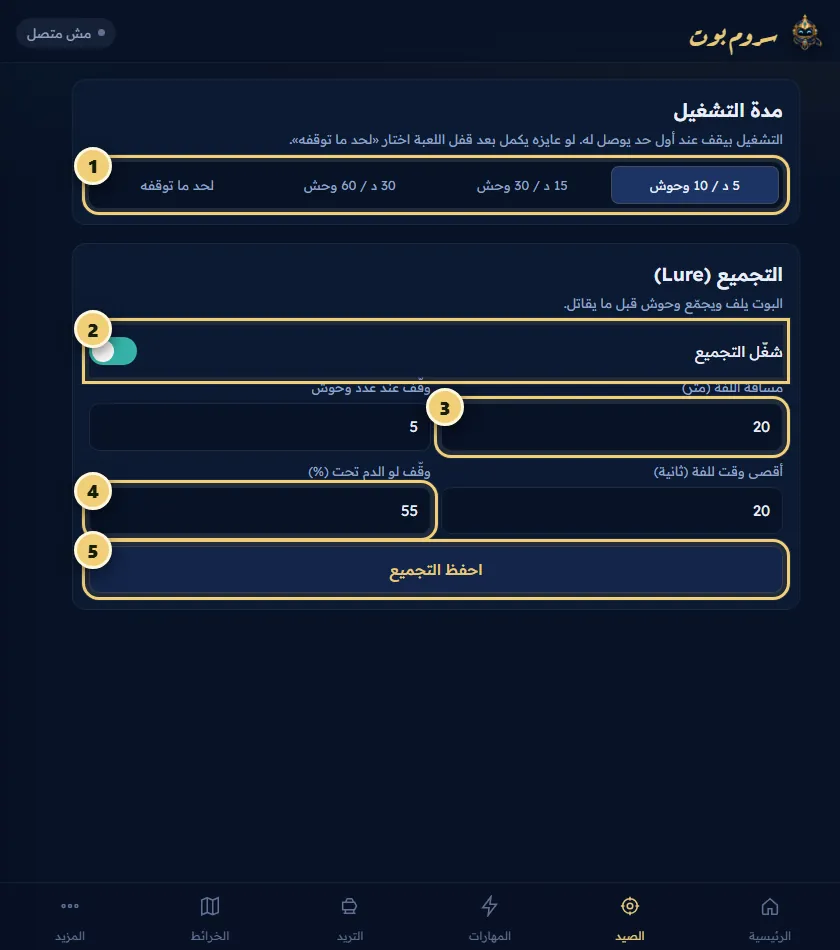
Session length and luring
Step 5

Session length and luring

  1. Start with 5 minutes or 10 monsters, then go longer.
  2. Turn on luring once distance and count are set.
  3. Set the lure distance, monster count and time limit.
  4. Set an HP floor that ends the lure before it gets risky.
  5. Save the lure settings.
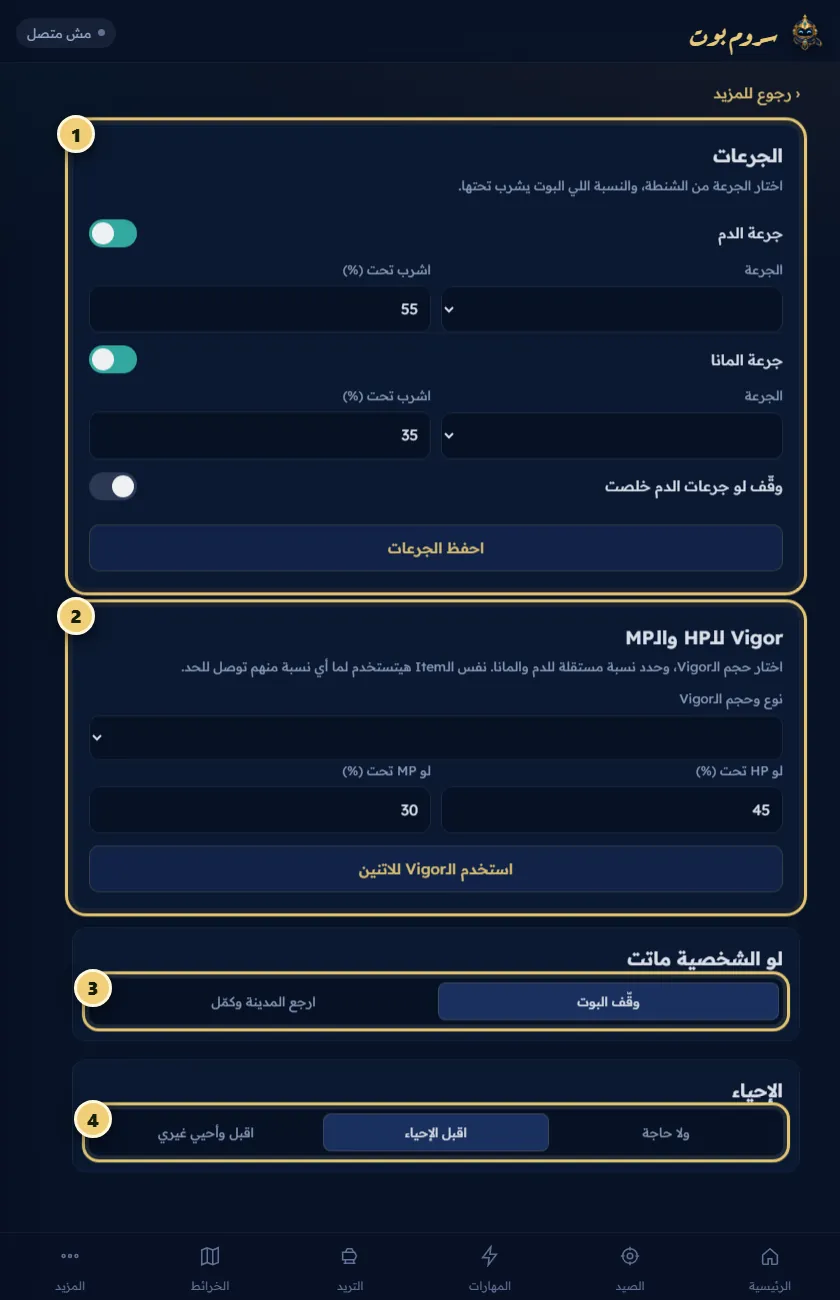
Potions, death and revive
Step 6

Potions, death and revive

  1. Turn on HP and MP potions and pick the level to drink below.
  2. Vigor covers HP and MP with two separate thresholds.
  3. If your character dies: the bot stops, or returns to town and carries on.
  4. Choose whether to accept revives and revive party members too.
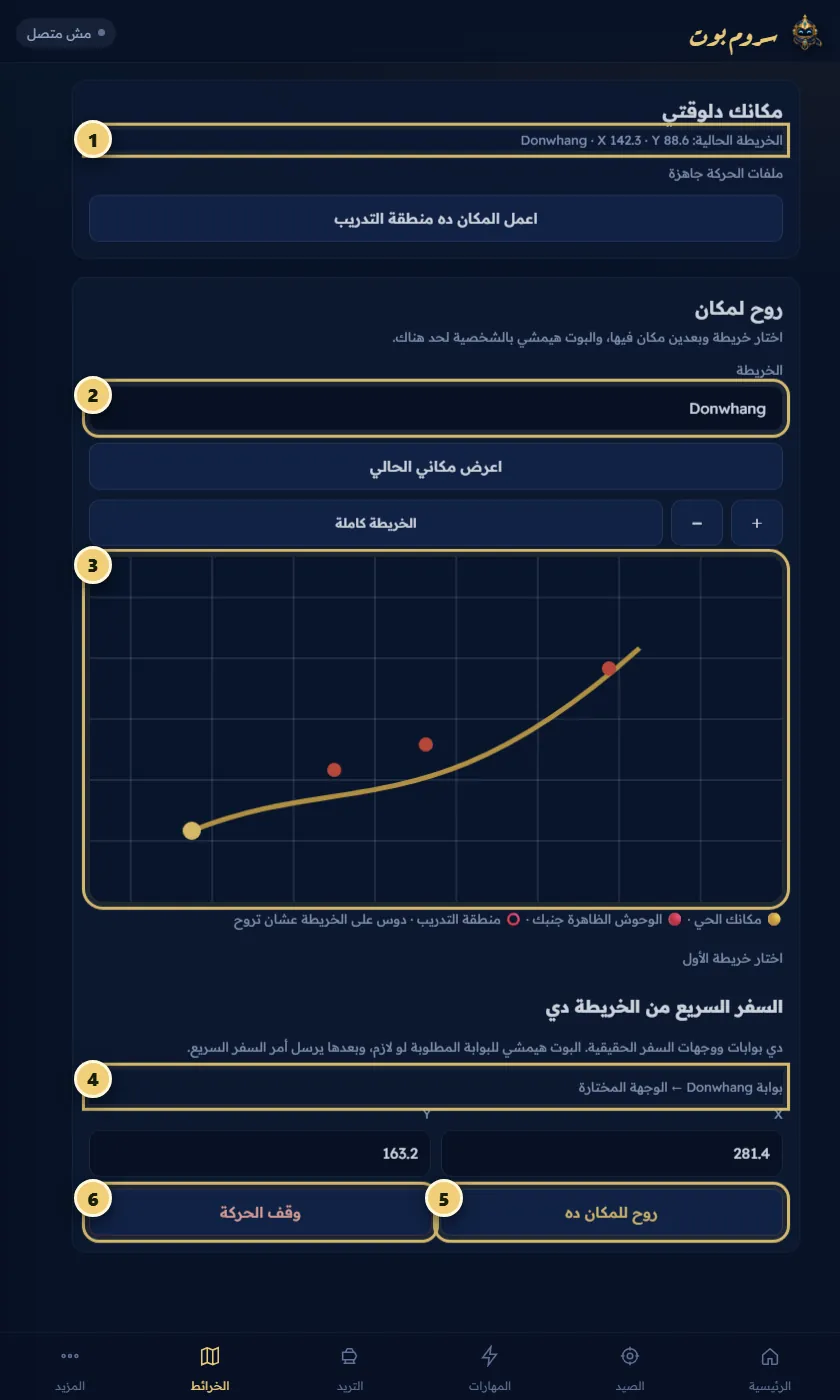
The map and moving
Step 7

The map and moving

  1. Check the app has read the map and your character's position.
  2. Pick the map you want.
  3. Tap the map to set your destination.
  4. If a fast-travel gate fits, it shows up here.
  5. Check X and Y, then tap "Go here".
  6. Stop moving any time from here.

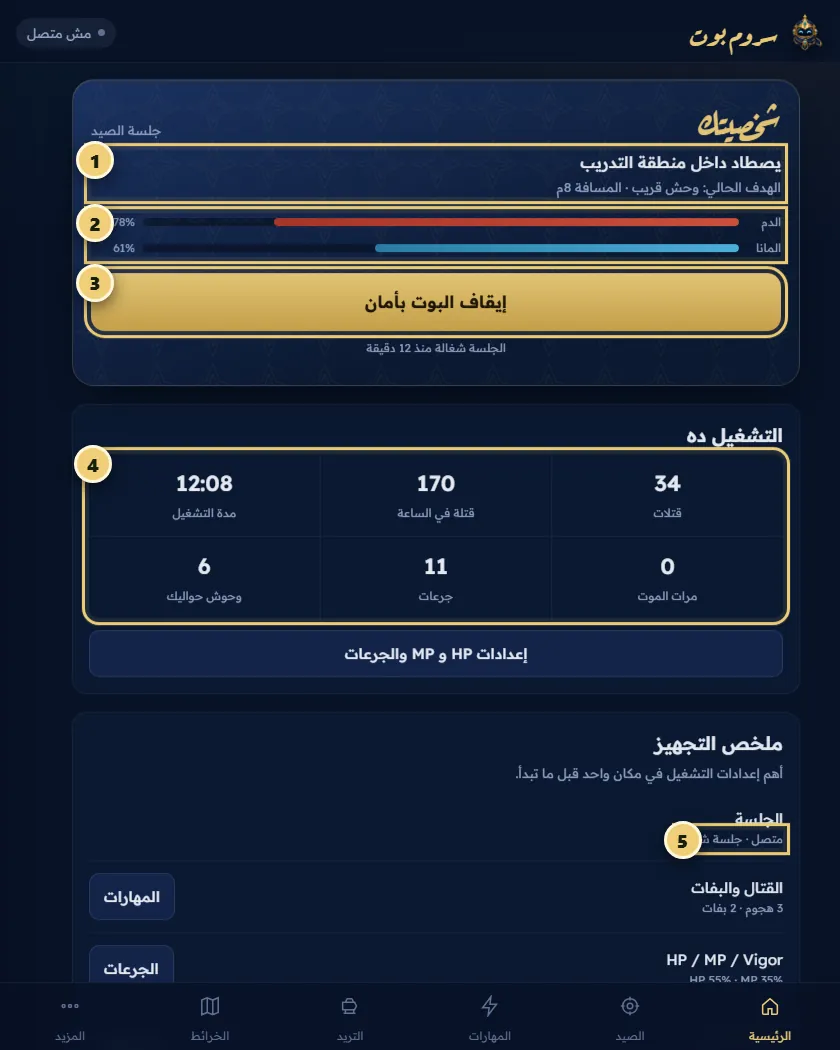
While it runs

Follow your session
Step 8

Follow your session

  1. The status tells you what the bot is doing right now.
  2. Watch HP and MP during the first minute.
  3. The same button becomes "Stop the bot safely" during a session.
  4. Follow kills, time, potions and monsters nearby.
  5. The setup summary shows the session, combat, protection and area.
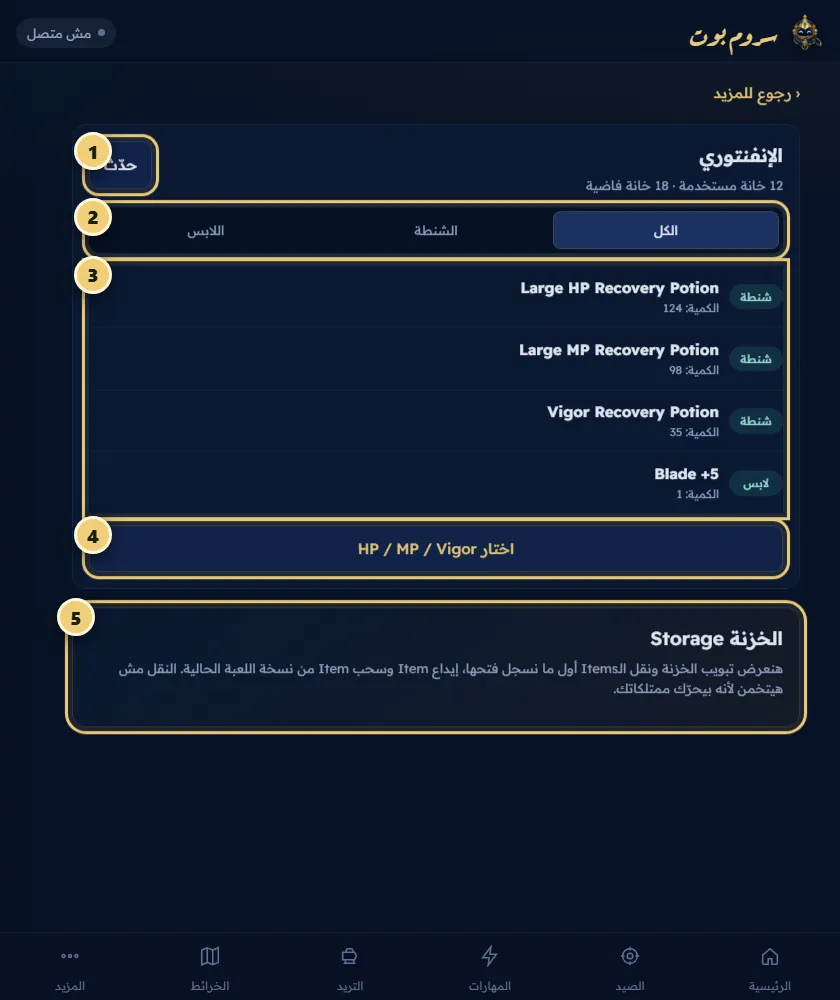
The inventory
Step 9

The inventory

  1. Refresh the list after changing your bag or gear.
  2. Show everything, the bag, or what you wear.
  3. Check names and counts before choosing potions.
  4. Open the HP, MP and Vigor potion settings from here.
  5. Storage transfers are coming soon.
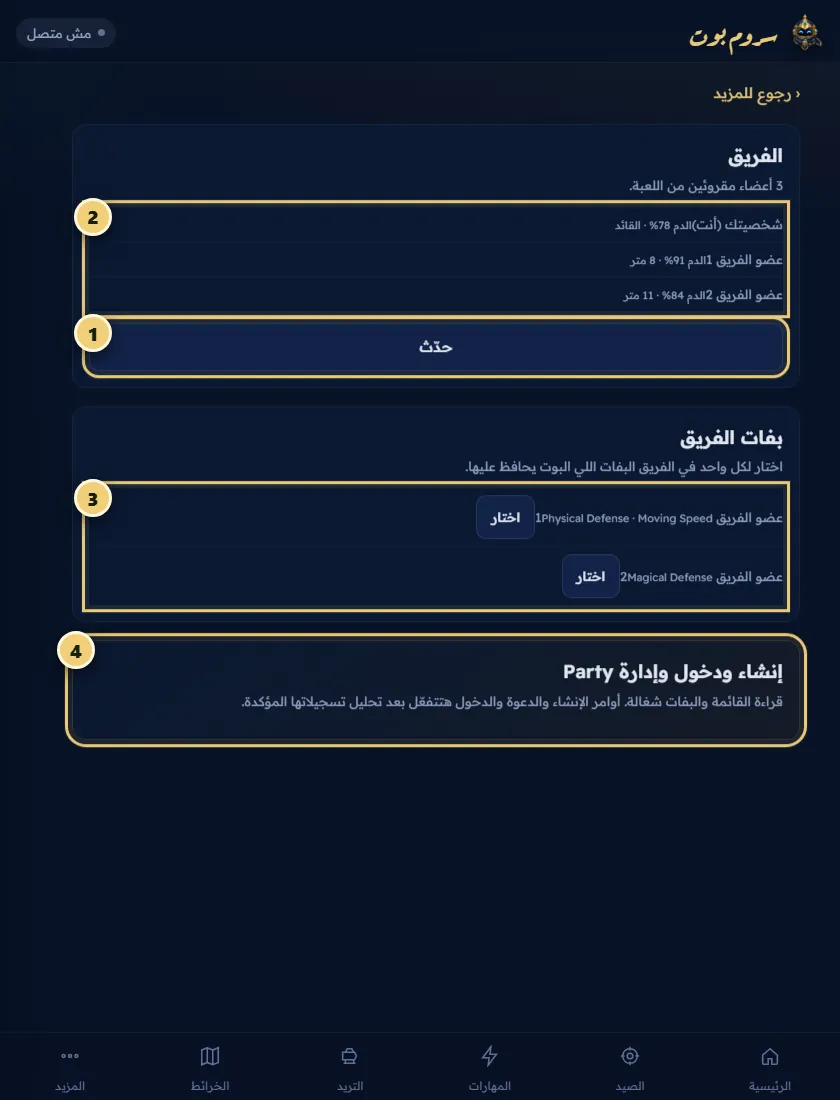
Party and member buffs
Step 10

Party and member buffs

  1. Refresh after a member joins or leaves.
  2. See each member and their state as the server reports it.
  3. Choose the buffs the bot keeps up on each member.
  4. Creating a party and invites are coming soon.
Follow a player
Step 11

Follow a player

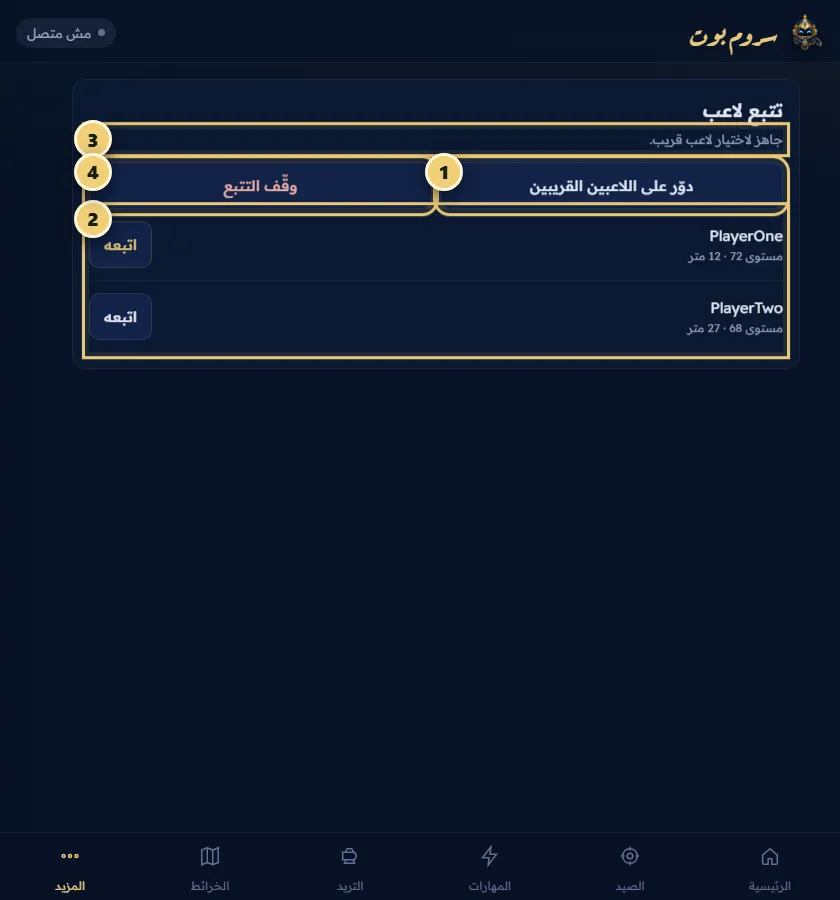
  1. Search for players nearby.
  2. Pick the right player by name and distance.
  3. This line shows who the bot is following.
  4. Stop following any time from here.
Trade protection
Step 12

Trade protection

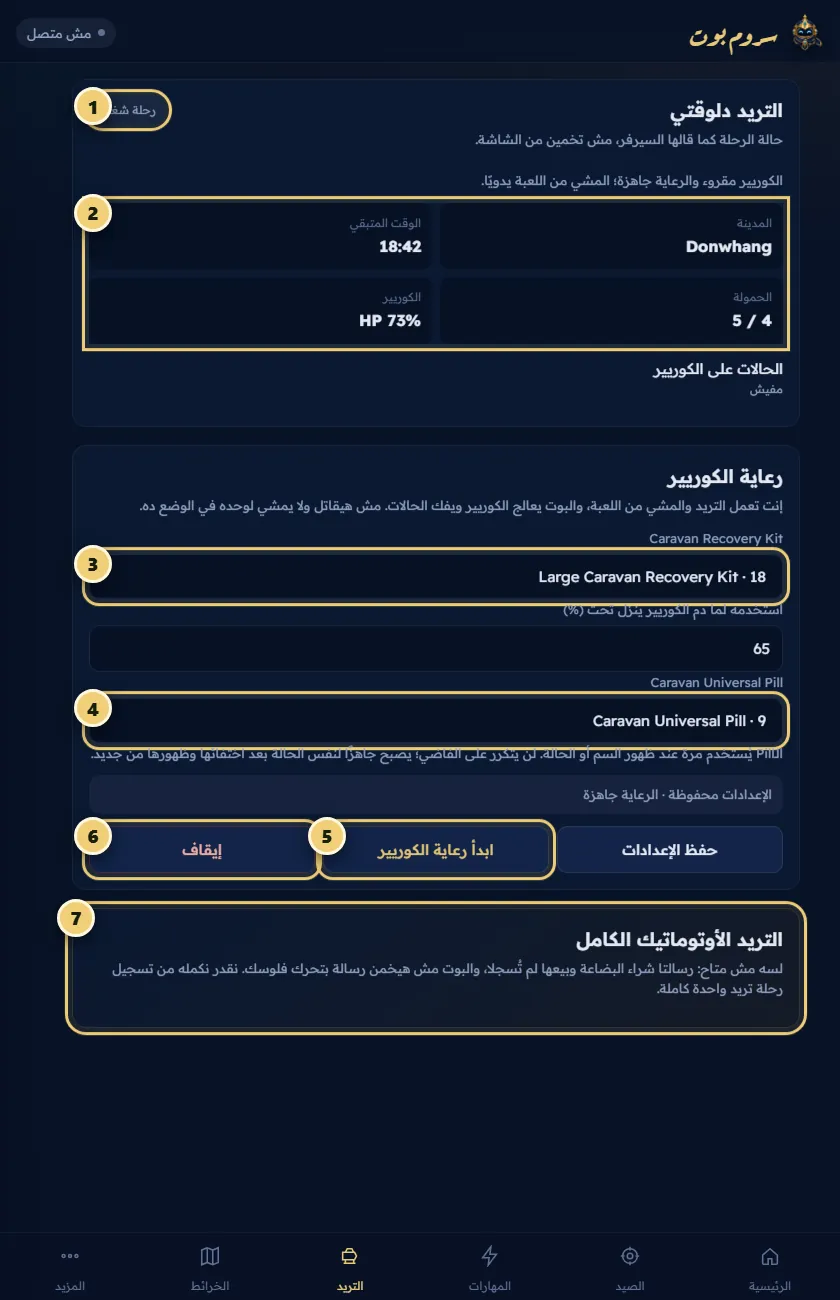
  1. Your run's status comes from the server itself, not a guess from the screen.
  2. Check the town, time, load and your trade's HP.
  3. Choose a Recovery Kit and the HP level to use it at.
  4. Choose a Universal Pill to cure any state the moment it appears.
  5. Tap "Start care" after saving.
  6. Stop the care any time from here.
  7. Fully automatic trade is coming soon.

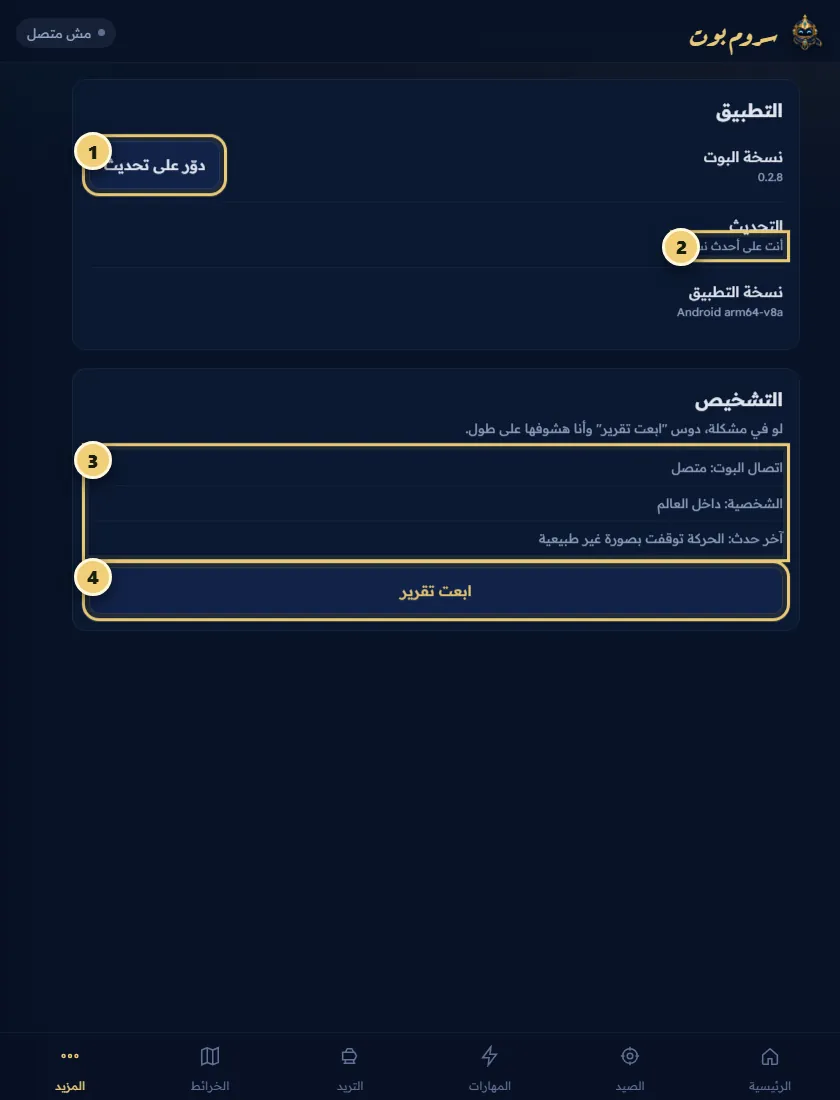
Controls and help

Updates and diagnostics
Step 13

Updates and diagnostics

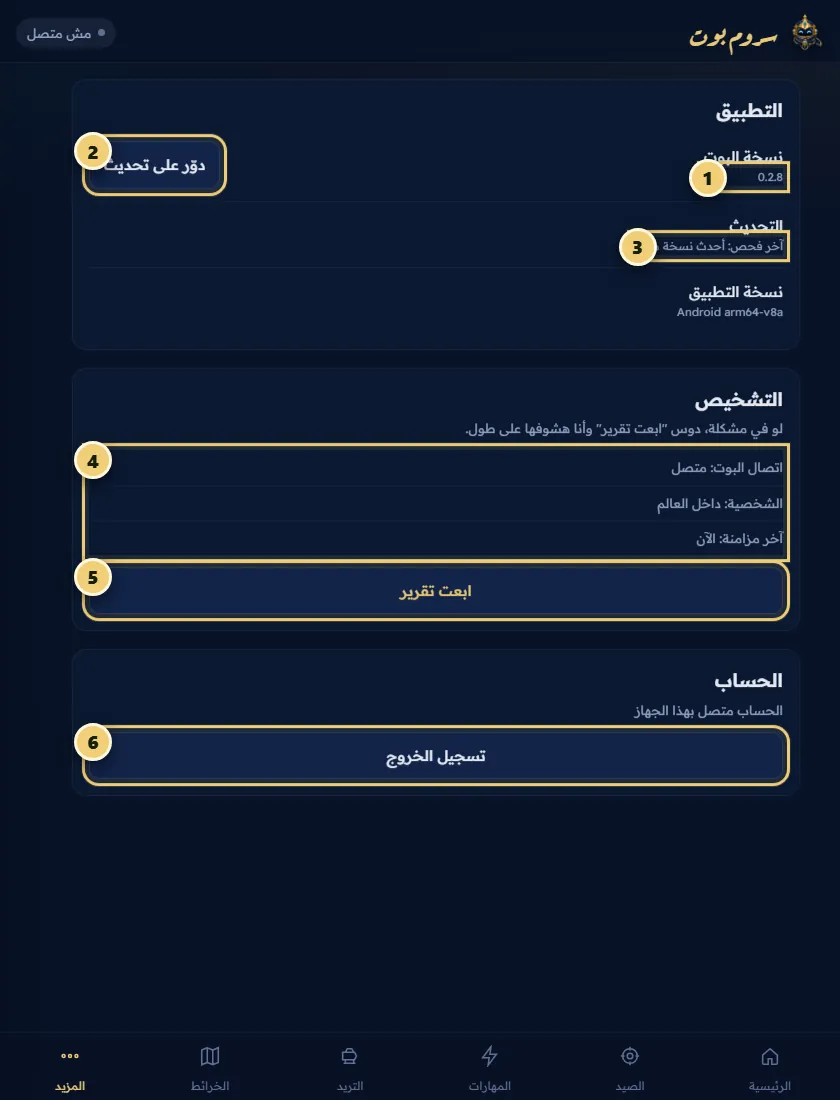
  1. Note the bot's version before opening a ticket.
  2. Check for the latest official update here.
  3. Read the result, or why an update failed.
  4. Check the connection state and the last event.
  5. Tap "Send report" and put its number in your ticket.
  6. Signing out doesn't fix movement or screen issues.
Control from on top of the game
Step 14

Control from on top of the game

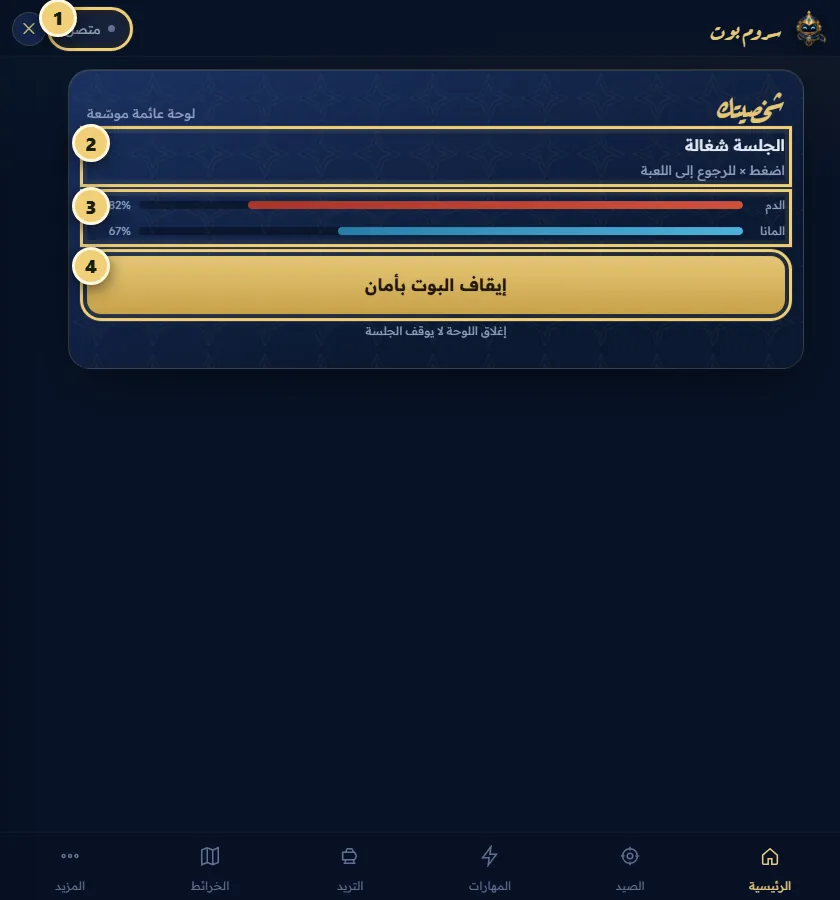
  1. Check it says connected, and tap × to go back to the game.
  2. Follow the bot's latest action.
  3. Watch HP and MP without leaving the game.
  4. Start or stop the session safely.
Black screen or choppy movement?
Step 15

Black screen or choppy movement?

  1. First make sure you're on the latest version.
  2. If the update failed, screenshot the reason shown here.
  3. Check the connection and the world show in diagnostics.
  4. Send a report right when the problem happens.

Ready to start?

Subscribe, download the app from your account, and set these steps once. After that your character plays on its own.

Subscribe now